


Your controlled documents, your approvals and your AI assistant, on your phone.
Look up, approve and read Arqueum documents wherever you are, with the same governance as Arqueum web: personalized watermark, biometrics, screenshot blocking and secure offline reading, with files encrypted on the device.


What it is
Arqueum Mobile is the companion app to the Arqueum platform for managing controlled documents and approval workflows. It brings to the phone what day-to-day work demands away from the desk: finding a procedure on the shop floor or at the bedside, deciding an approval between meetings, acknowledging a new document and consulting a standard where there is no signal. Configuration stays in Arqueum web; the app is where people consult and decide.
Who it is for
For anyone in the organization who uses Arqueum: whoever looks up a document, carries out a procedure, approves a workflow or answers for it in an audit. In any department and any sector, regulated or not.
-
Every employee
Look up current policies, standards and procedures and acknowledge new documents from wherever they are, from administration to HR, from finance to IT.
-
Approvers and managers
Decide on workflows between meetings and on the road, without depending on a computer.
-
Field and operations teams
Have the current procedure in hand on the shop floor, on site or at the bedside, with or without a connection.
-
Quality, compliance and audit
Make sure every reading, approval and acknowledgment is recorded, including in regulated sectors such as healthcare (ONA, ANVISA), oil and gas, engineering, manufacturing and laboratories.
Features
-
QR code connection, no password on the phone
The user signs in to Arqueum web, generates a single-use QR code under Personal Settings → App Connection and scans it with the app. No password is typed on the phone, and the code expires in two minutes.
-
A home screen with what matters
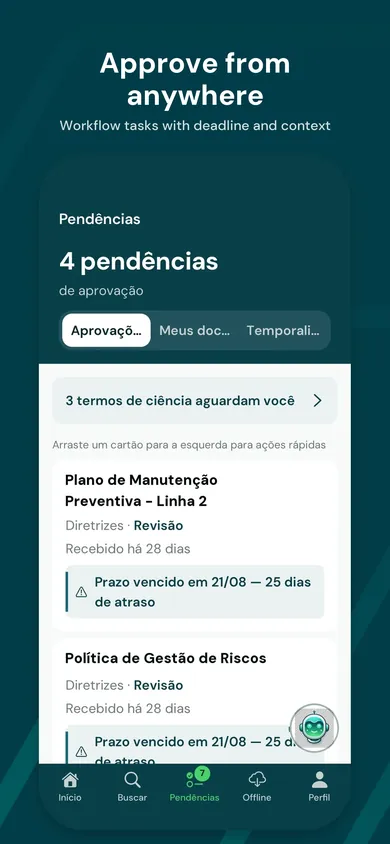
Pending approvals with deadlines, favorites, recently accessed documents and drafts, with the same numbers as the web dashboard.
-
Search and browse the repository
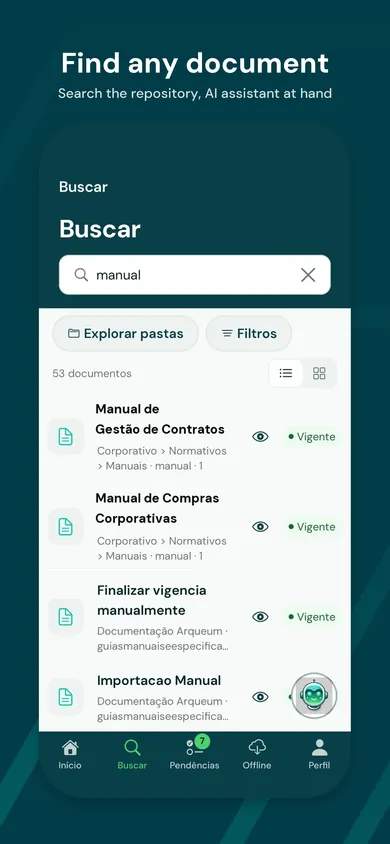
Search by title, tag and content, and browse by unit and storage location, with the same filters and permissions as Arqueum web.
-
The complete document
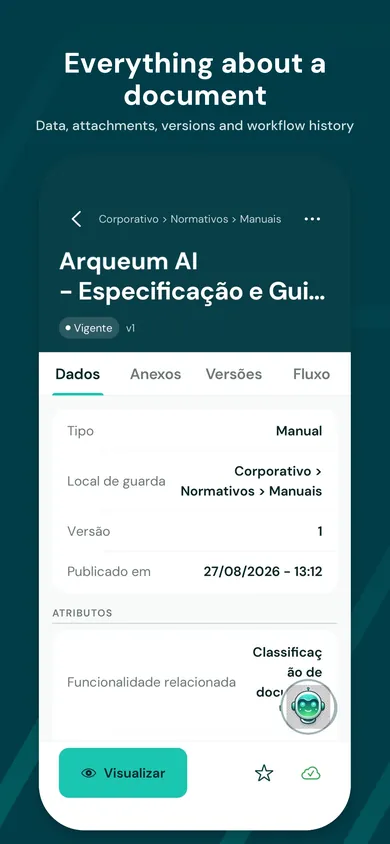
Data, attributes, attachments, versions and workflow history, exactly as the user can access them in Arqueum web.
-
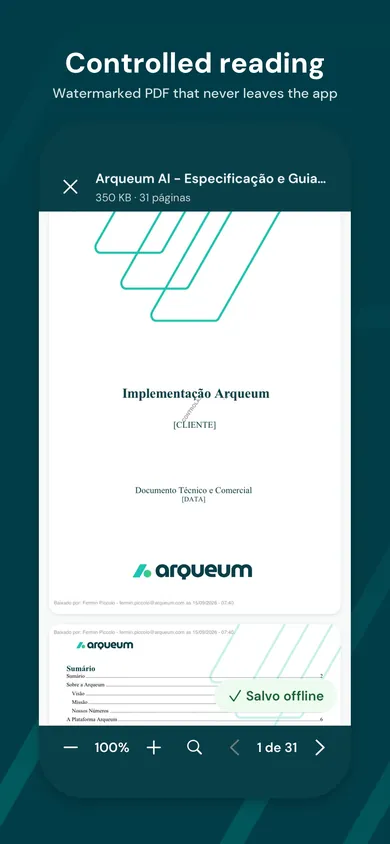
PDF viewer with a personalized watermark
Every page shows the name and email of the person reading it. The content leaves the instance and is displayed in the app, without passing through third-party services.
-
Approvals with a biometric signature
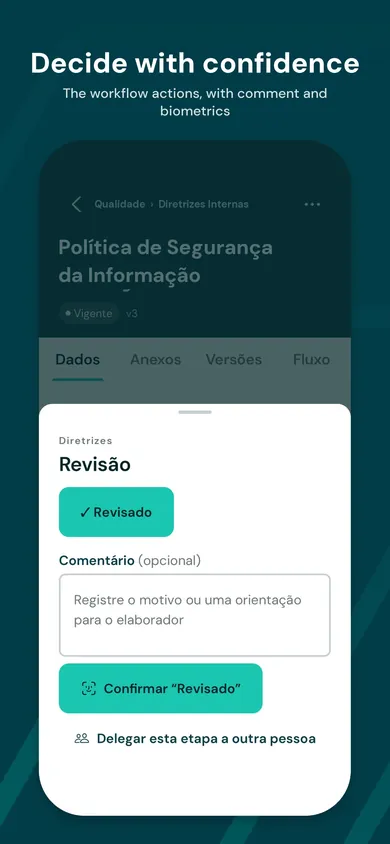
The actions in the workflow design (approve, reject, return, cancel) appear in the app with an optional or mandatory comment, according to the workflow rule. Confirmation asks for the device's biometrics, and the app offers the next pending item once it is done.
-
Stage delegation
Where the workflow allows it, the approver delegates the stage to another authorized person, with confirmation and a record in the document's history.
-
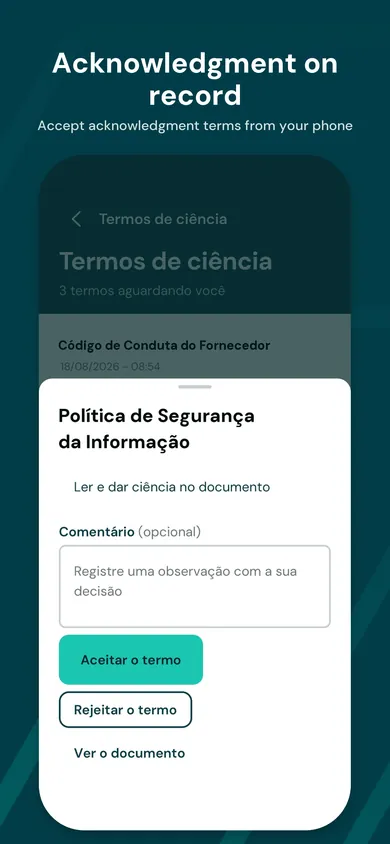
Acknowledgment terms
Documents that require acknowledgment appear as pending items; the acceptance is recorded in the instance.
-
Retention
In instances that decide obsolescence and expiry manually, pending retention items are decided in the app, by storage location.
-
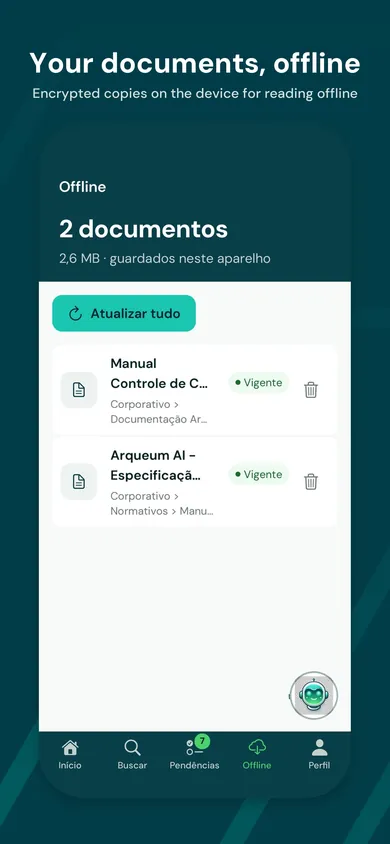
Offline reading
The user saves documents to the device and reads them without a connection. The files stay encrypted and become unreadable when the device is disconnected.
-
Notifications
The instance's notification list, in the app.
-
AI assistant
When the organization enables the assistant on its instance, the user chats with Arqueum AI about a document from the app. Questions go to the instance, which uses the AI service the organization has configured; the app embeds no AI service of its own.
In three languages (Portuguese, Spanish and English), following the device language.
Benefits
- Same-day approvals, not when you get back to the office: the workflow moves forward wherever the approver is.
- The current document in the hands of whoever carries out the work, even without signal, with the certainty that it is the controlled version.
- End-to-end traceability: who read, who approved, who delegated and when are recorded in the instance, as in Arqueum web.
- No new server, parallel registration or additional password: users, permissions and workflows remain those of Arqueum.
- The same audit requirements that already guide Arqueum web: version control, history, acknowledgment and watermark.
Security and privacy
-
No password on the phone
Pairing with a single-use QR code links the device to an existing user. The device credential has a limited validity, is renewed automatically and can be revoked by the user in Arqueum web.
-
Biometrics every time it opens
Face recognition, fingerprint or the device passcode protect the app when it opens and when it comes back from the background.
-
Personalized watermark
On every PDF displayed, with the reader's name and email.
-
Screenshot blocking
On the screens that show document content, on offline documents and in the conversation with the assistant.
-
Secure offline
Files saved on the device are encrypted with AES-256-GCM and discarded when the device is disconnected.
-
HTTPS only, your instance only
The app talks exclusively to the Arqueum instance it was connected to. There are no Arqueum intermediary servers in the data path.
-
No tracking
The app embeds no third-party analytics, advertising or crash-reporting SDKs.
-
Minimal data
The user's name, email and identifier are the ones in the instance; nothing is collected beyond what the web product already processes. Aligned with LGPD.
One app, your company's brand
A single app serves every customer organization: each user connects their phone to their company's Arqueum instance, public on the internet or private on the internal network, and from then on the app talks only to that instance. After pairing, it applies the visual identity configured in the instance under Central Administration → Branding: the logo and the menu colors. The result is an app that looks like your company, with no separate app to publish and maintain.
What the customer controls: the logo and the four colors of the header and the navigation bar (primary, secondary, active and inactive item). What stays the same: the Arqueum Mobile name in the stores, the screen structure and the security components, identical for every customer.
Requirements and availability
- Arqueum instance 3.14 or later with the mobile package enabled (QR code pairing turned on by the administrator).
- Access to the instance over HTTPS, via the internet or the organization's internal network, with a certificate the devices recognize.
- iPhone with iOS 16.4 or later and Android 7.0 or later.
- Available on the App Store and Google Play.
Getting started
-
1. Enable pairing
The instance administrator enables pairing through the app (Arqueum 3.14 mobile package).
-
2. Install the app
The user installs Arqueum Mobile from the App Store or Google Play.
-
3. Generate the QR code
In Arqueum web, they open Personal Settings → App Connection and generate the QR code.
-
4. Connect the phone
In the app, they tap "Scan the connection QR code", point the camera and confirm with biometrics. Done.
Arqueum Mobile frequently asked questions
- Do I need a username and password on my phone?
- No. The app uses the user you already have in Arqueum, connected through a QR code generated in your web session. The password is never typed on the phone.
- Does it work without internet?
- For reading, yes: documents saved for offline use open in airplane mode. Search, approvals and acknowledgment require a connection to the instance.
- Can I take a screenshot of a document?
- No. The screens that show document content block screenshots, and every PDF carries a watermark with the reader's name and email.
- Does my data go through Arqueum servers?
- No. The app talks directly to your organization's instance, via the internet or the internal network, always over HTTPS.
- Does the app carry my company's brand?
- Yes. The logo and colors configured in the instance are applied to the app after connection.
- I lost my phone. What now?
- In Personal Settings → App Connection, the user or the administrator disconnects the device, and its credential stops working immediately. Even before that, the app only opens with the device's biometrics or passcode, and the offline files are encrypted.
Want to see Arqueum Mobile with your operation?
We show the app connected to an Arqueum instance, from the QR code to a biometric approval.