


Fermin Piccolo
Co-founder, Arqueum
Published on · 6 min read
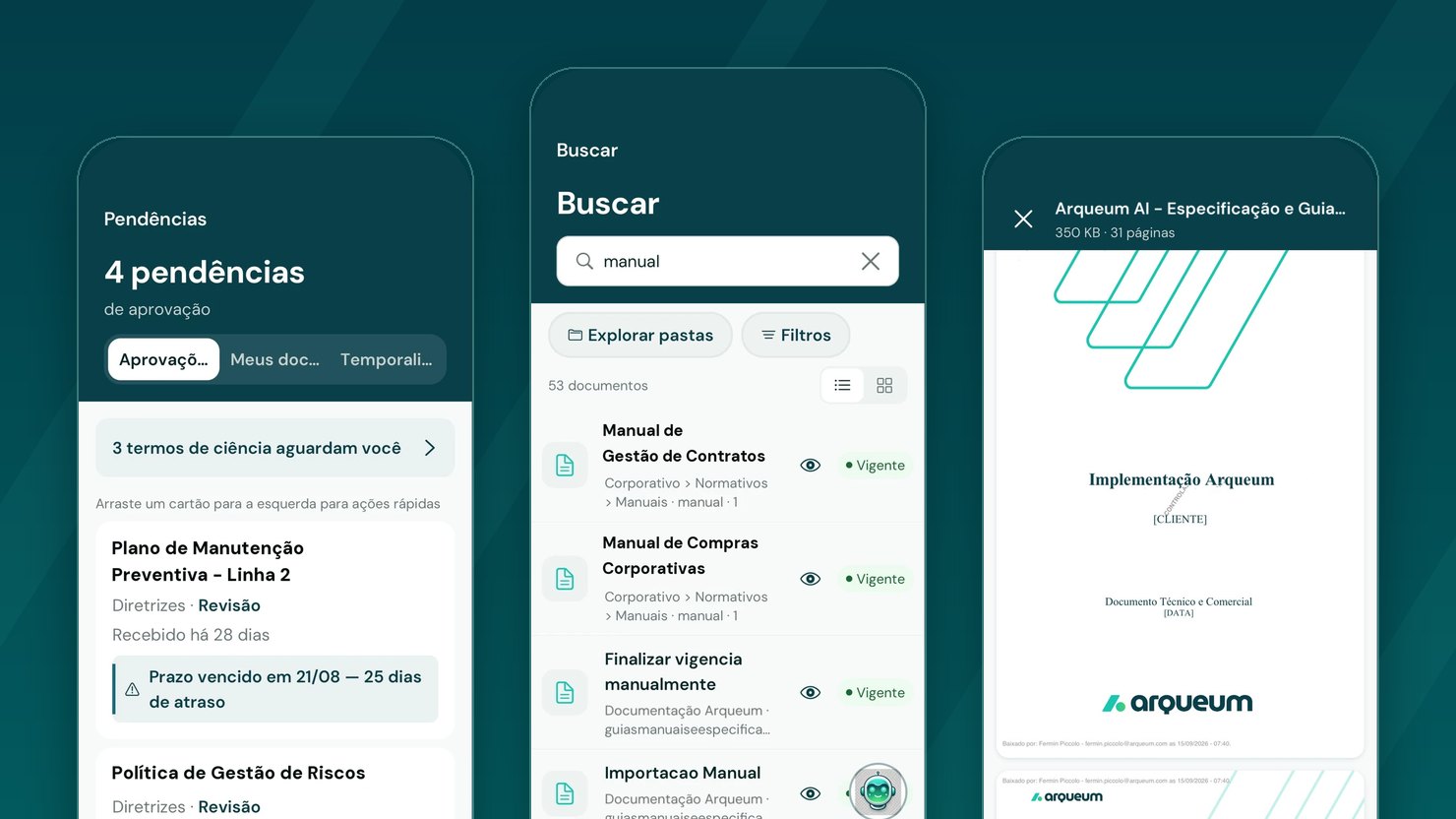
In every organization there comes a moment when the right document has to be with someone who is not in front of a computer. The approver spends the day between meetings, and the workflow only moves forward when they get back to their desk. The person doing the work needs the current procedure on the shop floor or at the bedside, not in the quality office. And the lookup often happens where there is no connection.
At those moments, control tends to slip: the decision is put off until the next day, a printed copy stops being the current one, a PDF circulates by message. Governance stays in the system while the work happens far from it.
Arqueum Mobile was built to close that gap. It brings document lookup, approval decisions and reading to the phone, with the same governance as the web version.
What Arqueum Mobile is
Arqueum Mobile is the platform’s app for iPhone and Android. Configuration stays in Arqueum web, and the app is used to look up documents and make decisions. Users, permissions and workflows remain those of the platform: no new server, no parallel user registry and no extra password.
A single app serves every client organization. Each user connects their phone to their company’s Arqueum instance, whether public on the internet or private on the internal network, and from then on the app communicates only with that instance.
Connecting with a QR code, in four steps
No password is typed on the phone: pairing links the device to a user who already exists in Arqueum, starting from the web session.
- The instance administrator enables app pairing, part of the Arqueum 3.14 mobile package.
- The user installs Arqueum Mobile from the App Store or Google Play.
- In Arqueum web, the user opens Personal Settings → App Connection and generates the QR code.
- In the app, the user taps Scan the connection QR code, points the camera and confirms with biometrics.
The QR code is single-use and expires in two minutes. The device credential has a limited validity, is renewed automatically and can be revoked by the user in Arqueum web.
What the app handles day to day
Pending items and approvals wherever the approver is
The app’s home screen shows pending approvals with deadlines, favorites, recently accessed documents and drafts, with the same numbers as the web dashboard.
The actions defined in the workflow design (approve, reject, return, cancel) appear in the app, with an optional or mandatory comment depending on the workflow rule. The decision is confirmed with the device’s biometrics, which ties it to the authenticated user. Once it is done, the app displays the next pending item. Where the workflow allows it, the approver delegates the step to another authorized person, with confirmation and a record in the document’s history. Approvals are completed the same day, without waiting for the approver to get back to the office.
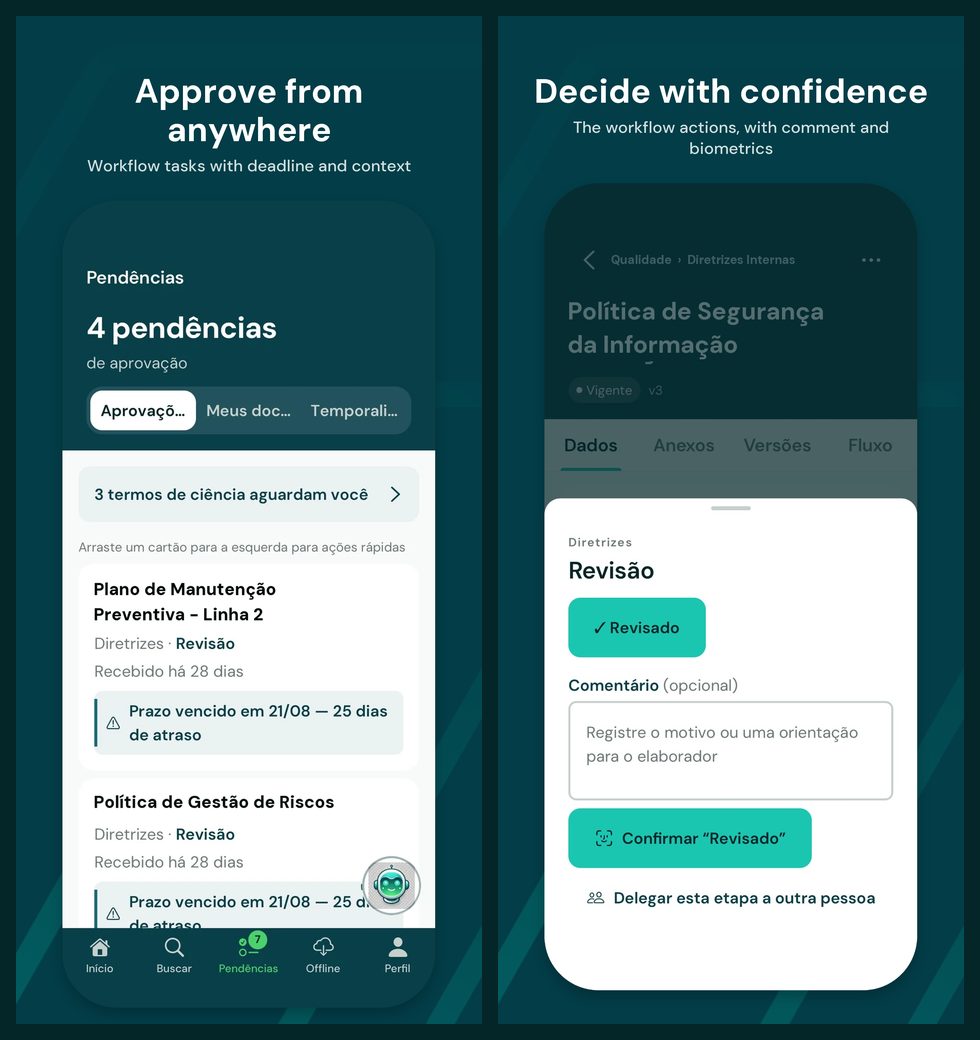 Left, pending approvals with their deadlines and the user’s pending acknowledgment terms; right, a review step with the workflow action, the comment and delegation, confirmed with biometrics.
The current procedure for whoever does the work
Search finds documents by title, tag and content, and browsing goes through the repository by unit and storage location, with the same filters and permissions as Arqueum web.
Opening a document shows its data, attributes, attachments, versions and workflow history, exactly as the user can access them in Arqueum web. PDFs open in a viewer that watermarks every page with the name and email of the person reading. The content goes from the instance to the app without passing through third-party services.
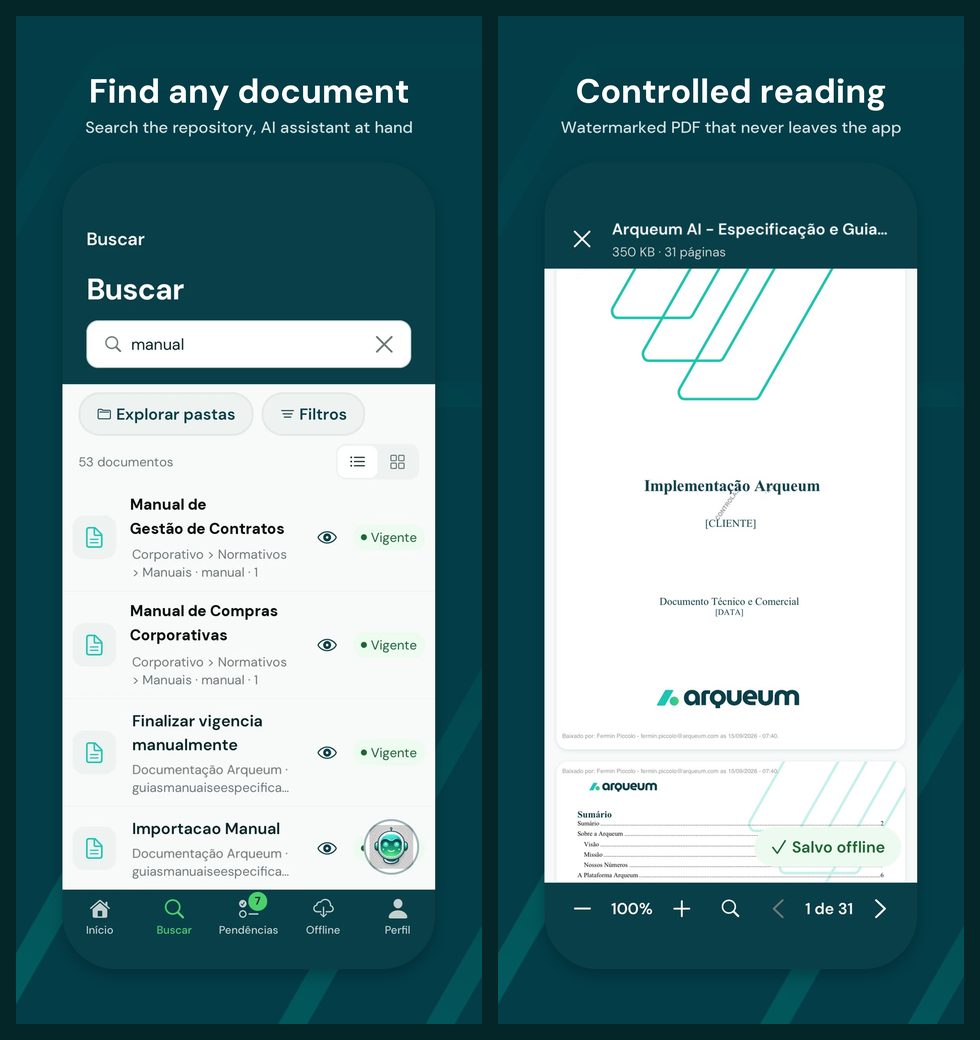 Left, repository search results, with each document’s current status shown; right, the PDF read inside the app, with the reader’s watermark on every page.
Reading without a connection
Users save documents on the device and read them offline, airplane mode included. The files are encrypted on the phone and become unreadable once the device is disconnected. Reading works offline; search, approvals and acknowledgments require a connection to the instance.
Acknowledgment, retention and notifications
Documents that require acknowledgment appear as pending items, and the acceptance is recorded in the instance. In instances configured for manual obsolescence and expiry decisions, pending retention decisions are also made in the app, by storage location. The instance’s notification list is available in the app as well.
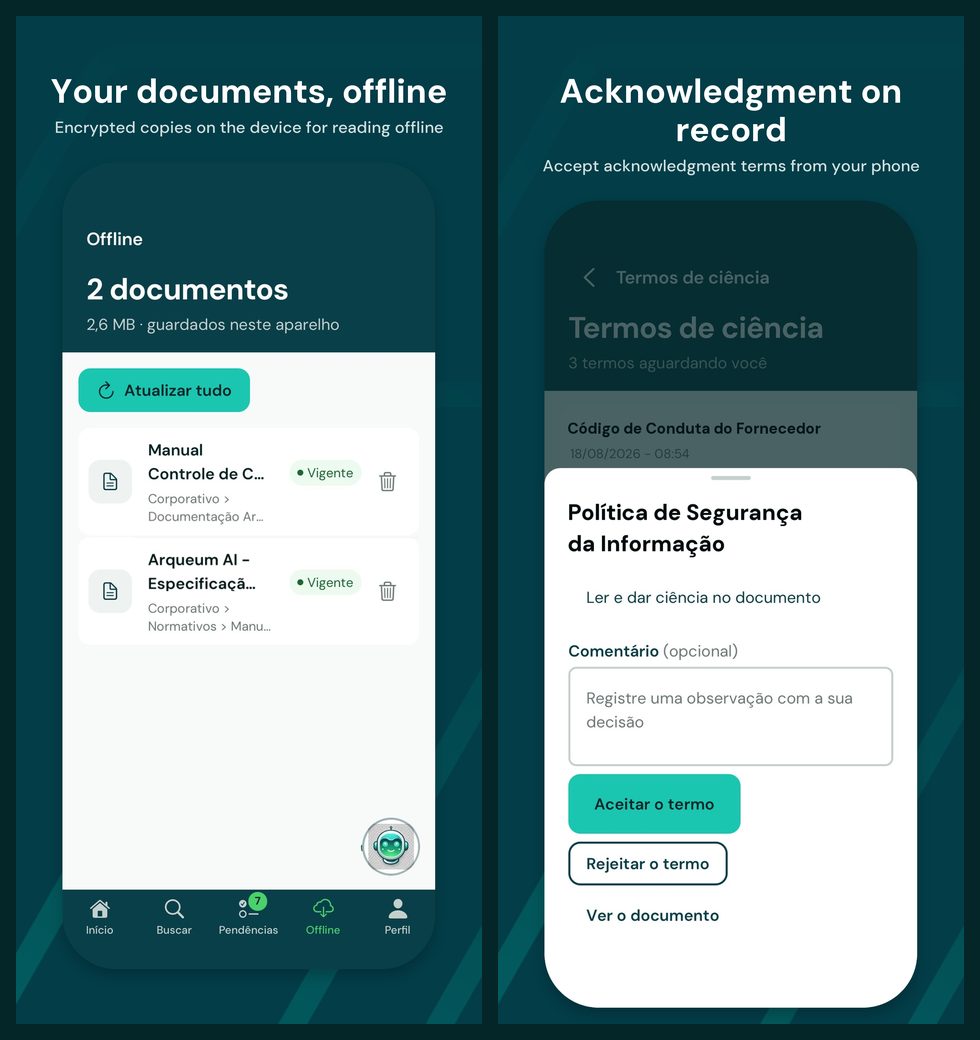 Left, documents saved on the device for offline reading, as encrypted copies; right, an acknowledgment term accepted or rejected from the phone, with an optional comment.
Who read, who approved, who delegated and when: all of it is recorded in the instance, as in Arqueum web. The traceability that audits require does not depend on where the person was.
AI assistant, when the organization enables it
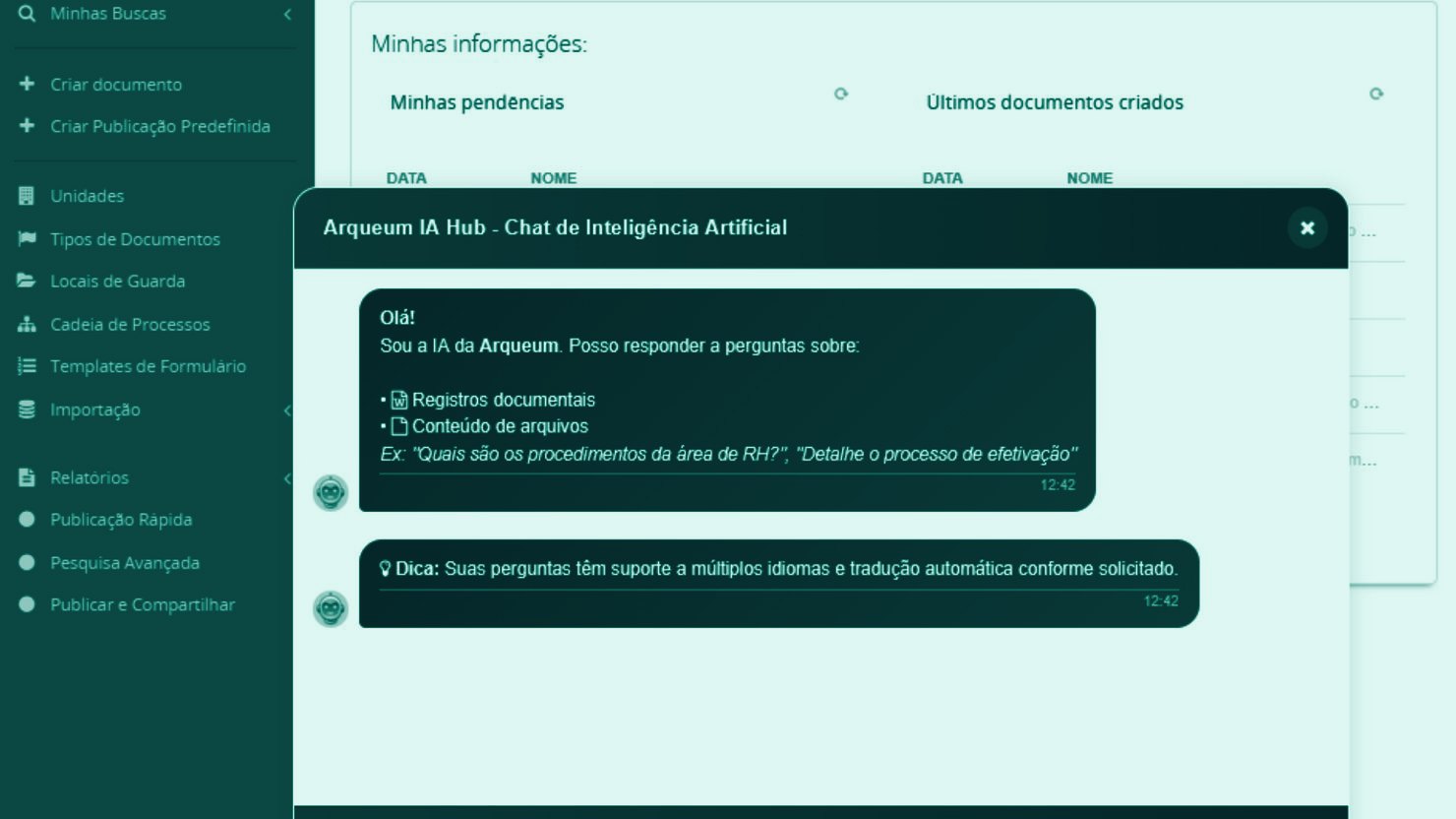
If the organization enables the assistant on its instance, users can talk to Arqueum AI about a document from the app. Questions go to the organization’s instance, which uses the AI service the organization has configured. The app does not embed any AI service of its own.
The app works in Portuguese, Spanish and English, following the device language.
Security and privacy
Controlled documents on the phone require the same control as in Arqueum web. Besides the password-free connection and the watermark, the app provides:
- Biometrics every time it opens. Facial recognition, fingerprint or the device passcode protect the app when it opens and when it returns from the background.
- Screenshot blocking on screens that show document content, on offline documents and in the assistant conversation.
- Secure offline storage. Files saved on the device are encrypted with AES-256-GCM and discarded when the device is disconnected.
- HTTPS only, your instance only. The app communicates only with the instance it was connected to, with no Arqueum intermediary servers in the data path.
- No tracking. The app embeds no third-party analytics, advertising or crash-reporting SDKs.
- Minimal data. The user’s name, email and identifier are those of the instance; nothing is collected beyond what the web product already handles, in line with the LGPD.
If a phone is lost, the user or the administrator disconnects it under Personal Settings → App Connection, and the device credential is revoked immediately.
Your company’s brand in the app
Arqueum Mobile is a single app in the stores, but each organization sees it with its own brand. After pairing, the app applies the visual identity configured in the instance under Central Administration → Branding: the logo and the four colors of the header and navigation bar. The result is an app with your company’s visual identity, without a separate app to publish and maintain.
What stays the same for every client: the Arqueum Mobile name in the stores, the screen structure and the security components.
Requirements and availability
- Arqueum instance 3.14 or later, with the mobile package enabled and QR code pairing switched on by the administrator.
- HTTPS access to the instance, over the internet or the organization’s internal network, with a certificate the devices recognize.
- iPhone with iOS 16.4 or later and Android 7.0 or later.
- Available on the App Store and Google Play.
Getting started
Features, security and requirements are gathered on the Arqueum Mobile page. To install, download the app from the App Store or Google Play and connect your phone with the QR code generated in Arqueum web.